> ## Documentation Index
> Fetch the complete documentation index at: https://model-context-protocol.mintlify.site/llms.txt
> Use this file to discover all available pages before exploring further.
# 适用于 Claude 桌面版用户
> 开始在 Claude 桌面版中使用预构建的服务器。
在本教程中,您将扩展 [Claude 桌面版](https://claude.ai/download),使其能够读取计算机的文件系统、写入新文件、移动文件,甚至搜索文件。
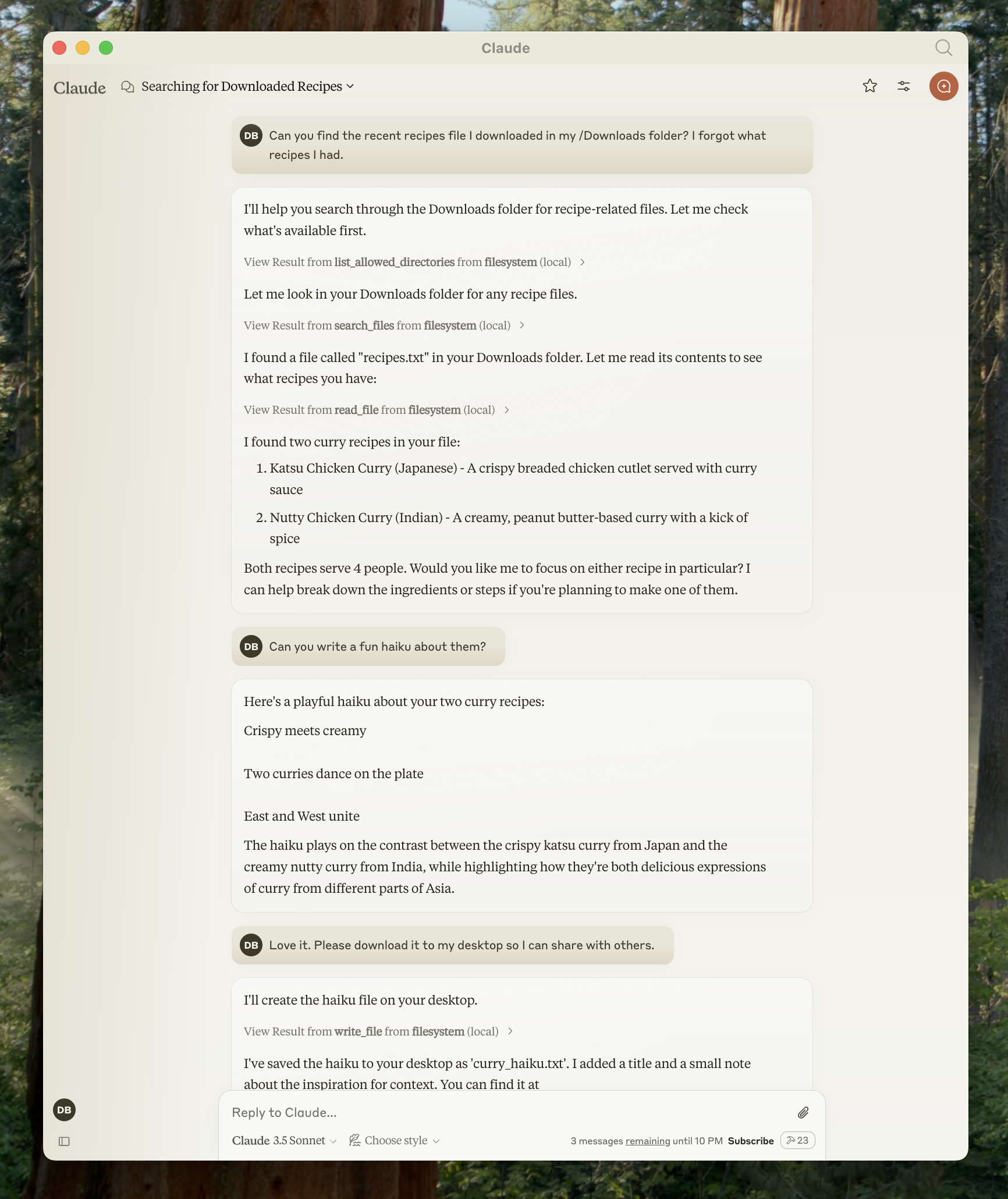 不用担心——在执行这些操作之前,它会征求您的许可!
## 1. 下载 Claude 桌面版
首先下载 [Claude 桌面版](https://claude.ai/download),选择 macOS 或 Windows。(Claude 桌面版尚不支持 Linux。)
按照安装说明进行操作。
如果您已经有 Claude 桌面版,请通过点击计算机上的 Claude 菜单并选择“检查更新...”确保其为最新版本。
由于服务器是本地运行的,MCP 目前仅支持桌面主机。远程主机正在积极开发中。
## 2. 添加文件系统 MCP 服务器
要添加此文件系统功能,我们将向 Claude 桌面版安装一个预构建的 [文件系统 MCP 服务器](https://github.com/modelcontextprotocol/servers/tree/main/src/filesystem)。这是由 Anthropic 和社区创建的数十个[服务器](https://github.com/modelcontextprotocol/servers/tree/main)之一。
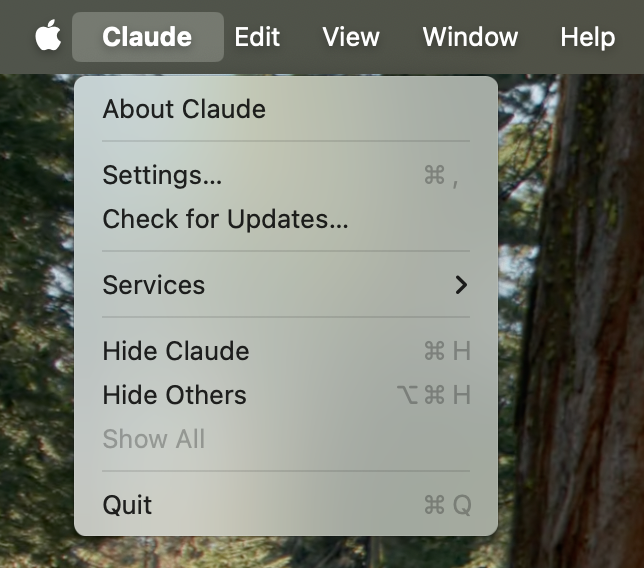
首先在计算机上打开 Claude 菜单并选择“设置...”。请注意,这不是应用程序窗口本身中的 Claude 帐户设置。
在 Mac 上应该是这样的:
不用担心——在执行这些操作之前,它会征求您的许可!
## 1. 下载 Claude 桌面版
首先下载 [Claude 桌面版](https://claude.ai/download),选择 macOS 或 Windows。(Claude 桌面版尚不支持 Linux。)
按照安装说明进行操作。
如果您已经有 Claude 桌面版,请通过点击计算机上的 Claude 菜单并选择“检查更新...”确保其为最新版本。
由于服务器是本地运行的,MCP 目前仅支持桌面主机。远程主机正在积极开发中。
## 2. 添加文件系统 MCP 服务器
要添加此文件系统功能,我们将向 Claude 桌面版安装一个预构建的 [文件系统 MCP 服务器](https://github.com/modelcontextprotocol/servers/tree/main/src/filesystem)。这是由 Anthropic 和社区创建的数十个[服务器](https://github.com/modelcontextprotocol/servers/tree/main)之一。
首先在计算机上打开 Claude 菜单并选择“设置...”。请注意,这不是应用程序窗口本身中的 Claude 帐户设置。
在 Mac 上应该是这样的:
 点击设置窗格左侧栏中的“开发者”,然后点击“编辑配置”:
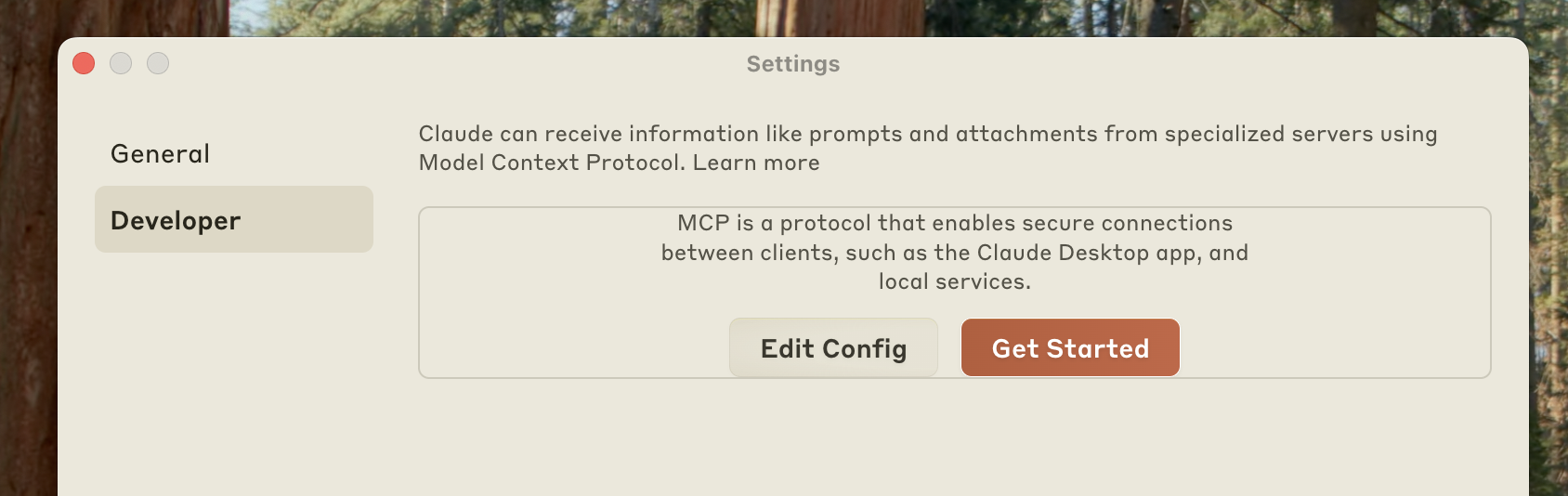 如果您还没有配置文件,这将创建一个配置文件:
* macOS: `~/Library/Application Support/Claude/claude_desktop_config.json`
* Windows: `%APPDATA%\Claude\claude_desktop_config.json`
并将在文件系统中显示该文件。
在任何文本编辑器中打开配置文件。将文件内容替换为以下内容:
```json theme={null}
{
"mcpServers": {
"filesystem": {
"command": "npx",
"args": [
"-y",
"@modelcontextprotocol/server-filesystem",
"/Users/username/Desktop",
"/Users/username/Downloads"
]
}
}
}
```
```json theme={null}
{
"mcpServers": {
"filesystem": {
"command": "npx",
"args": [
"-y",
"@modelcontextprotocol/server-filesystem",
"C:\\Users\\username\\Desktop",
"C:\\Users\\username\\Downloads"
]
}
}
}
```
确保将 `username` 替换为您计算机的用户名。路径应指向您希望 Claude 能够访问和修改的有效目录。它设置为适用于桌面和下载,但您也可以添加更多路径。
您还需要在计算机上安装 [Node.js](https://nodejs.org) 才能正常运行。要验证您是否安装了 Node,请打开计算机上的命令行。
* 在 macOS 上,从应用程序文件夹中打开终端
* 在 Windows 上,按 Windows + R,输入“cmd”,然后按 Enter
进入命令行后,通过输入以下命令验证您是否安装了 Node:
```bash theme={null}
node --version
```
如果您收到“command not found”或“node is not recognized”的错误,请从 [nodejs.org](https://nodejs.org/) 下载 Node。
**配置文件如何工作?**
此配置文件告诉 Claude 桌面版每次启动应用程序时要启动哪些 MCP 服务器。在本例中,我们添加了一个名为“filesystem”的服务器,该服务器将使用 Node `npx` 命令安装并运行 `@modelcontextprotocol/server-filesystem`。此服务器在[此处](https://github.com/modelcontextprotocol/servers/tree/main/src/filesystem)描述,将允许您在 Claude 桌面版中访问文件系统。
## 3. 重启 Claude
更新配置文件后,您需要重启 Claude 桌面版。
重启后,您应该会在输入框的右下角看到一个锤子
如果您还没有配置文件,这将创建一个配置文件:
* macOS: `~/Library/Application Support/Claude/claude_desktop_config.json`
* Windows: `%APPDATA%\Claude\claude_desktop_config.json`
并将在文件系统中显示该文件。
在任何文本编辑器中打开配置文件。将文件内容替换为以下内容:
```json theme={null}
{
"mcpServers": {
"filesystem": {
"command": "npx",
"args": [
"-y",
"@modelcontextprotocol/server-filesystem",
"/Users/username/Desktop",
"/Users/username/Downloads"
]
}
}
}
```
```json theme={null}
{
"mcpServers": {
"filesystem": {
"command": "npx",
"args": [
"-y",
"@modelcontextprotocol/server-filesystem",
"C:\\Users\\username\\Desktop",
"C:\\Users\\username\\Downloads"
]
}
}
}
```
确保将 `username` 替换为您计算机的用户名。路径应指向您希望 Claude 能够访问和修改的有效目录。它设置为适用于桌面和下载,但您也可以添加更多路径。
您还需要在计算机上安装 [Node.js](https://nodejs.org) 才能正常运行。要验证您是否安装了 Node,请打开计算机上的命令行。
* 在 macOS 上,从应用程序文件夹中打开终端
* 在 Windows 上,按 Windows + R,输入“cmd”,然后按 Enter
进入命令行后,通过输入以下命令验证您是否安装了 Node:
```bash theme={null}
node --version
```
如果您收到“command not found”或“node is not recognized”的错误,请从 [nodejs.org](https://nodejs.org/) 下载 Node。
**配置文件如何工作?**
此配置文件告诉 Claude 桌面版每次启动应用程序时要启动哪些 MCP 服务器。在本例中,我们添加了一个名为“filesystem”的服务器,该服务器将使用 Node `npx` 命令安装并运行 `@modelcontextprotocol/server-filesystem`。此服务器在[此处](https://github.com/modelcontextprotocol/servers/tree/main/src/filesystem)描述,将允许您在 Claude 桌面版中访问文件系统。
## 3. 重启 Claude
更新配置文件后,您需要重启 Claude 桌面版。
重启后,您应该会在输入框的右下角看到一个锤子  图标:
图标:
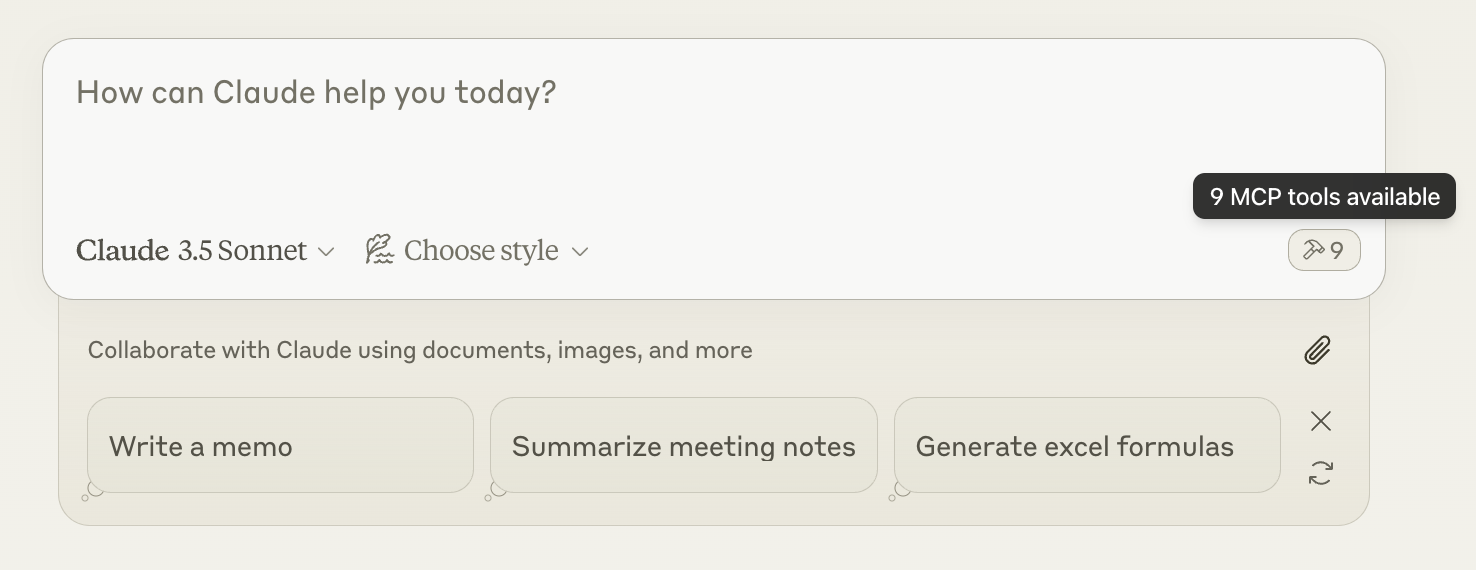 点击锤子图标后,您应该会看到文件系统 MCP 服务器附带的工具:
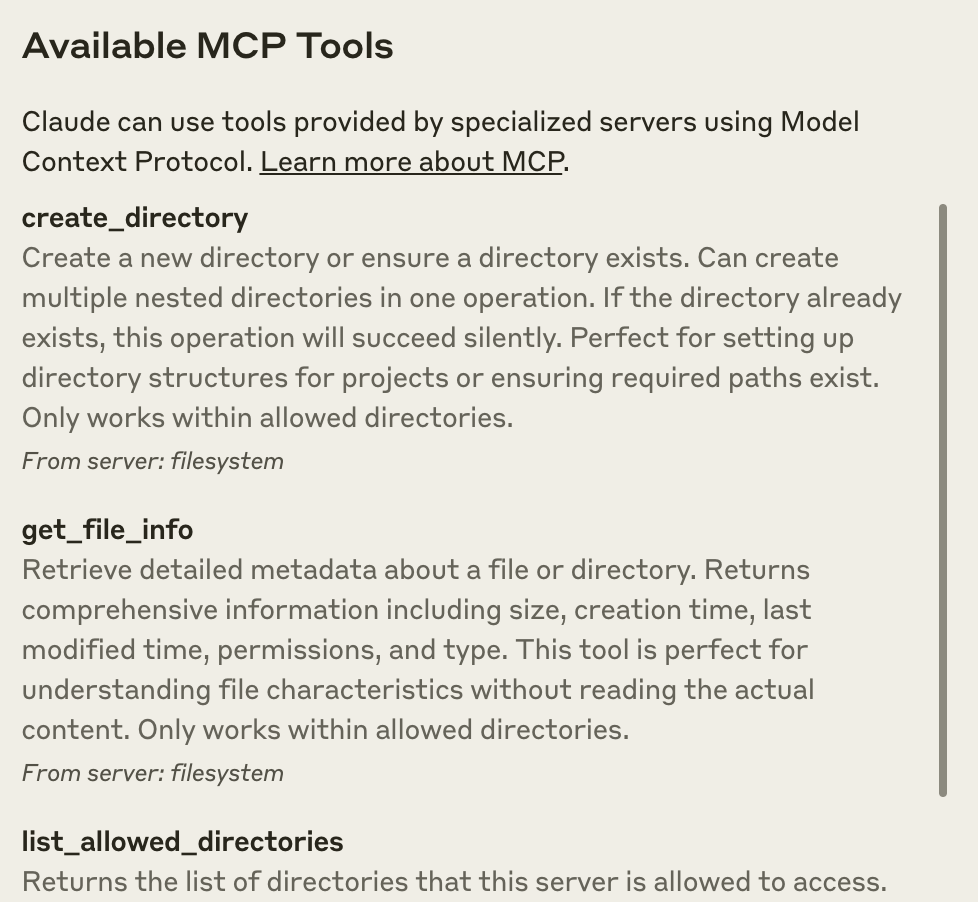 如果您的服务器未被 Claude 桌面版识别,请转到[故障排除](#troubleshooting)部分以获取调试提示。
## 4. 试试看!
现在您可以与 Claude 交谈并询问它有关文件系统的问题。它应该知道何时调用相关工具。
您可以尝试向 Claude 提问的内容:
* 你能写一首诗并将其保存到我的桌面吗?
* 我下载文件夹中的一些工作相关文件是什么?
* 你能将我桌面上的所有图像移动到一个名为“Images”的新文件夹中吗?
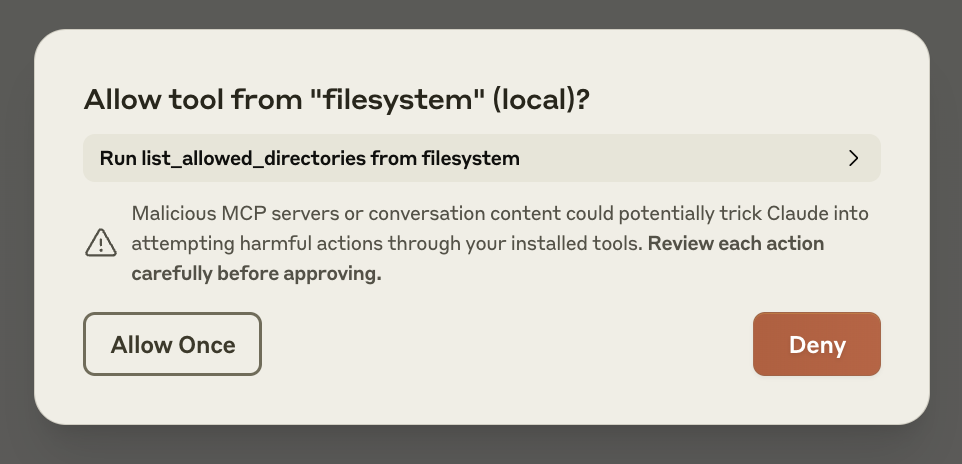
根据需要,Claude 将调用相关工具并在采取行动之前征求您的批准:
如果您的服务器未被 Claude 桌面版识别,请转到[故障排除](#troubleshooting)部分以获取调试提示。
## 4. 试试看!
现在您可以与 Claude 交谈并询问它有关文件系统的问题。它应该知道何时调用相关工具。
您可以尝试向 Claude 提问的内容:
* 你能写一首诗并将其保存到我的桌面吗?
* 我下载文件夹中的一些工作相关文件是什么?
* 你能将我桌面上的所有图像移动到一个名为“Images”的新文件夹中吗?
根据需要,Claude 将调用相关工具并在采取行动之前征求您的批准:
 ## 故障排除
1. 完全重启 Claude 桌面版
2. 检查您的 `claude_desktop_config.json` 文件语法
3. 确保 `claude_desktop_config.json` 中包含的文件路径有效,并且它们是绝对路径而不是相对路径
4. 查看[日志](#getting-logs-from-claude-for-desktop)以了解服务器未连接的原因
5. 在命令行中尝试手动运行服务器(如同在 `claude_desktop_config.json` 中替换 `username`)以查看是否有任何错误:
```bash theme={null}
npx -y @modelcontextprotocol/server-filesystem /Users/username/Desktop /Users/username/Downloads`
```
```bash theme={null}
npx -y @modelcontextprotocol/server-filesystem C:\Users\username\Desktop C:\Users\username\Downloads
```
Claude.app 与 MCP 相关的日志记录写入以下日志文件:
* macOS: `~/Library/Logs/Claude`
* Windows: `%APPDATA%\Claude\logs`
* `mcp.log` 将包含有关 MCP 连接和连接失败的一般日志记录。
* 名为 `mcp-server-SERVERNAME.log` 的文件将包含来自命名服务器的错误(stderr)日志记录。
您可以运行以下命令列出最近的日志并跟踪任何新日志(在 Windows 上,它只会显示最近的日志):
```bash theme={null}
# 检查 Claude 的日志以查找错误
tail -n 20 -f ~/Library/Logs/Claude/mcp*.log
```
```bash theme={null}
type "%APPDATA%\Claude\logs\mcp*.log"
```
如果 Claude 尝试使用工具但失败:
1. 检查 Claude 的日志以查找错误
2. 验证您的服务器是否构建并运行无错误
3. 尝试重启 Claude 桌面版
请参阅我们的[调试指南](/docs/tools/debugging),以获取更好的调试工具和更详细的指导。
## 下一步
查看我们的官方 MCP 服务器和实现画廊
现在构建您自己的自定义服务器,以便在 Claude 桌面版和其他客户端中使用
## 故障排除
1. 完全重启 Claude 桌面版
2. 检查您的 `claude_desktop_config.json` 文件语法
3. 确保 `claude_desktop_config.json` 中包含的文件路径有效,并且它们是绝对路径而不是相对路径
4. 查看[日志](#getting-logs-from-claude-for-desktop)以了解服务器未连接的原因
5. 在命令行中尝试手动运行服务器(如同在 `claude_desktop_config.json` 中替换 `username`)以查看是否有任何错误:
```bash theme={null}
npx -y @modelcontextprotocol/server-filesystem /Users/username/Desktop /Users/username/Downloads`
```
```bash theme={null}
npx -y @modelcontextprotocol/server-filesystem C:\Users\username\Desktop C:\Users\username\Downloads
```
Claude.app 与 MCP 相关的日志记录写入以下日志文件:
* macOS: `~/Library/Logs/Claude`
* Windows: `%APPDATA%\Claude\logs`
* `mcp.log` 将包含有关 MCP 连接和连接失败的一般日志记录。
* 名为 `mcp-server-SERVERNAME.log` 的文件将包含来自命名服务器的错误(stderr)日志记录。
您可以运行以下命令列出最近的日志并跟踪任何新日志(在 Windows 上,它只会显示最近的日志):
```bash theme={null}
# 检查 Claude 的日志以查找错误
tail -n 20 -f ~/Library/Logs/Claude/mcp*.log
```
```bash theme={null}
type "%APPDATA%\Claude\logs\mcp*.log"
```
如果 Claude 尝试使用工具但失败:
1. 检查 Claude 的日志以查找错误
2. 验证您的服务器是否构建并运行无错误
3. 尝试重启 Claude 桌面版
请参阅我们的[调试指南](/docs/tools/debugging),以获取更好的调试工具和更详细的指导。
## 下一步
查看我们的官方 MCP 服务器和实现画廊
现在构建您自己的自定义服务器,以便在 Claude 桌面版和其他客户端中使用